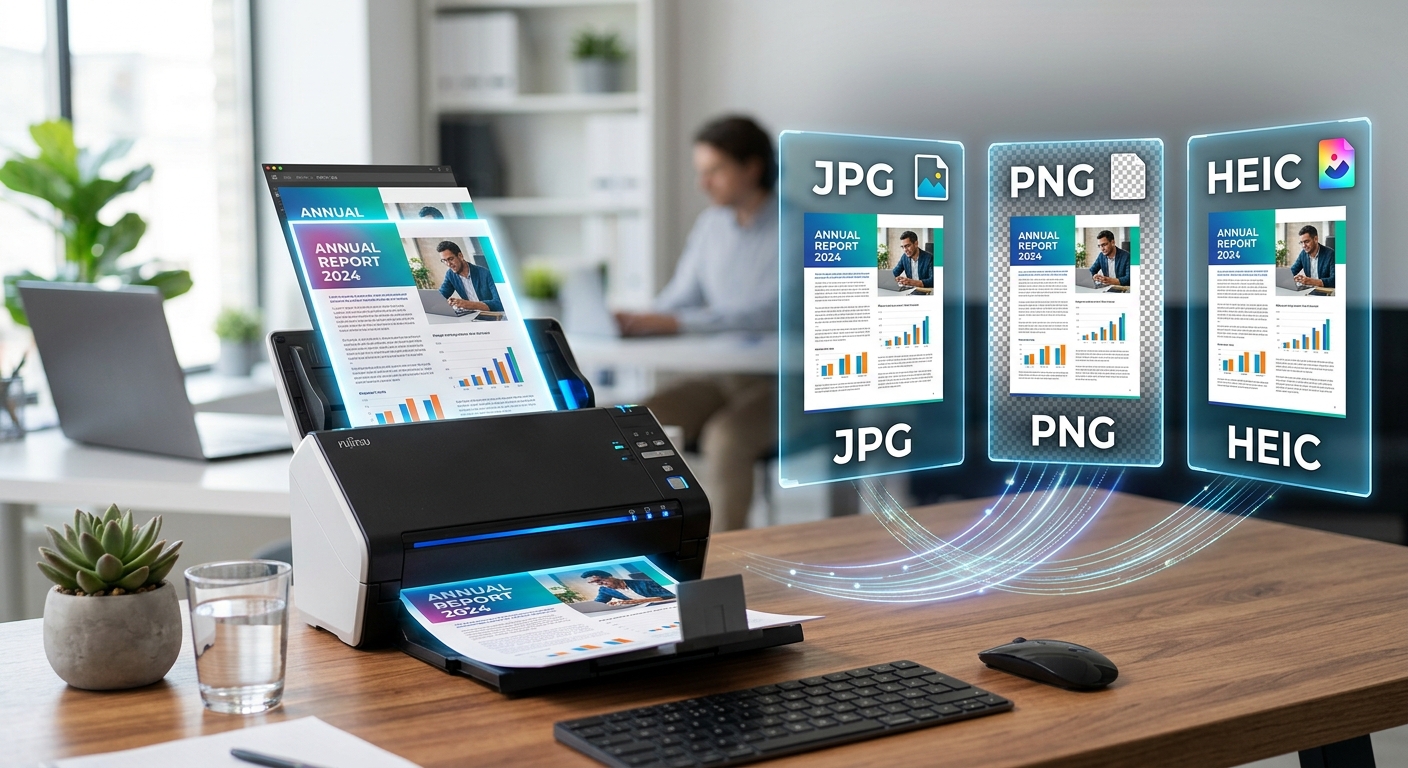
You scan a contract, pull pages out of a PDF, or photograph a receipt on your phone. The next question is always the same: how do you save it? Three letters stare back at you. JPG. PNG. HEIC. Pick wrong and you end up with a blurry attachment nobody can read, or a file so large it bounces back from an email server. Pick right and the document looks clean, opens instantly, and takes up exactly the space it deserves.
Your format choice shapes readability, file size, and long-term storage all at once.
- JPG compresses well for email but can soften sharp text if the quality setting is pushed too low.
- PNG preserves every pixel exactly, making it the strongest pick for typed forms and fine print.
- HEIC delivers near-PNG clarity at roughly half the file size, built for modern device archives.
What Each Format Actually Does to Your Image
All three formats store the same thing: a grid of colored pixels that make up your document page. The difference is in how they package that pixel data before writing it to disk.
JPG uses lossy compression. It studies the image, identifies details too subtle for the eye to catch, and discards them permanently. The result is a smaller file. The catch is real, though. Once those details are gone, no software can bring them back. Every time you re-save a JPG, another compression pass runs, and the image quietly degrades a little further.
PNG uses lossless compression. It rearranges data to reduce file size, but nothing is thrown away. Open a PNG and save it a hundred times and it still looks exactly like the original. That matters a great deal for legal documents, signed forms, and anything where fine print needs to stay legible years from now.
HEIC, the High Efficiency Image Container, is built on a far more sophisticated codec than either JPG or PNG. It spots repetitive patterns in image data with much greater precision, which lets it discard far less while still producing a smaller file. The result: HEIC files typically take up about half the storage of a comparable JPG, often with no visible quality difference. Apple made it the default iPhone camera format starting with iOS 11, and it is now natively supported on Windows 11, Android, and most modern browsers.
JPG for Emails, Sharing, and Everyday Scans
If you are scanning a document to email today, JPG is usually the safest starting point. Every email client, browser, and operating system on the planet opens a JPG without issue. There is no plugin required, no compatibility warning, no "format not supported" message on the other end.
JPG handles continuous tones gracefully. Color brochures, scanned photographs, handwritten notes where ink blends softly into paper. The compression algorithm was designed for exactly this kind of content, and it shows.
The trouble starts with sharp, high-contrast text on a white background. That hard edge between a black letter and a white page is precisely what JPG compression wants to soften. Keep the quality setting at 80 percent or above, and text stays readable. Drop it further to shrink the file, and letters begin to look faintly smeared, especially at smaller font sizes.
For a contract you are sending once and then filing, JPG at high quality is perfectly adequate. For a document that will be re-exported or re-saved multiple times, JPG is the wrong tool for the job.
PNG When Sharpness and Accuracy Cannot Be Compromised
PNG has one job it does better than any other common image format: preserving hard edges and high-contrast detail. A scanned tax form, a signed lease, a printed invoice, a certificate with a fine decorative border. All of these look noticeably cleaner when saved as PNG.
The tradeoff is file size. A scanned letter saved as a high-quality JPG might land around 200 kilobytes. The same scan saved as PNG can be four or five times larger. That difference matters if you are storing hundreds of pages or attaching files to a system with strict upload limits.
PNG also supports transparency. If you are extracting a signature or a company logo from a scanned background and dropping it into another document, PNG keeps the cutout clean with no white box surrounding it. No other common document-image format handles transparent areas without introducing that unwanted background.
The Mozilla developer network's web image format guide notes that PNG performs best with images containing sharp transitions and large areas of flat color. That description fits a text document almost perfectly, which is why PNG consistently produces cleaner-looking scans of typed or printed pages.
HEIC and Why Modern Devices Gravitate Toward It
HEIC is the format to reach for when you are building a document archive on a phone, tablet, or any device where storage is limited. The arithmetic is hard to argue with. Scan fifty receipts a month and a JPG folder fills up fast. The same set of scans in HEIC takes up roughly half the space, typically without any quality penalty visible to the naked eye.
If you already have a folder of JPGs or PNGs sitting in an archive you want to store more efficiently, you can convert to HEIC in one step before moving the files to long-term storage. Batch conversion means you process the entire folder at once rather than opening each file individually.
One area where HEIC still hits friction: very old software, certain government submission portals, and some legacy printers may not accept the format. If you are sending a document to an unknown destination, JPG or PNG is the safer choice. HEIC earns its place in archives and personal libraries where you control both the saving and the opening.
Choosing the Right Format Without Overthinking It
Most document use cases map cleanly to one format once you know what each one does. A simple reference helps:
- Emailing a contract or agreement: JPG at high quality. Small enough to attach, readable on every device.
- Archiving a signed form or legal document: PNG. Lossless preservation means the text will be just as crisp in five years.
- Storing a year's worth of receipts on your phone: HEIC. The storage savings compound noticeably over hundreds of files.
- Submitting to a government portal or official website: JPG or PNG. Check what the portal accepts before uploading, as HEIC support is not universal.
- Extracting a signature or logo from a scanned page: PNG. Transparency support keeps the cutout looking professional in any document.
How PDF-to-Image Conversion Connects to This Decision
Many document workflows start with a PDF rather than a direct scan. A supplier sends over a multi-page invoice. A client emails a signed agreement. A bank statement arrives as a PDF with six pages you need to file separately. Before those pages can be saved as JPG, PNG, or HEIC, the PDF has to be split into individual image files first.
That step is where PDF-to-image conversion tools come in. Once the pages are extracted as separate images, the format decision this article covers becomes immediate and concrete. The pages are ready. The only question is how to save them.
If the PDF contains mostly typed text and charts, PNG gives the cleanest output for archiving. If you need to email a single page fast, JPG gets it to the inbox without inflating the attachment size. If the pages are headed into a phone-based folder for long-term storage, HEIC keeps the library lean. The PDF split is just step one. Format selection is step two, and it is the step that determines what happens to the document over time.
Browser-based tools handle this split without any software to install, which keeps the workflow practical for someone who converts documents occasionally rather than daily.
What "Without Losing Quality" Really Means in Practice
Quality loss in image files is a spectrum. The phrase "without losing quality" in practice means "without losing quality that affects how the document reads or prints."
A JPG at 90 to 95 percent quality looks almost indistinguishable from the source PNG to most eyes. A JPG at 60 percent quality shows obvious softness around text edges and a visible halo around letters on white backgrounds. PNG preserves every pixel regardless of file size. HEIC's compression is precise enough that most people cannot identify any degradation even at high compression settings.
The practical check is fast. After saving, zoom into the smallest text on the page, preferably a line at eight points or smaller. If the letters look crisp and the edges between dark text and white background are clean, quality is intact. If the edges appear fuzzy or a faint grey ring surrounds each letter, the compression was pushed too far.
For anything going into an archive, PNG or HEIC at their default settings pass that test reliably. For anything going out as an email attachment, JPG at high quality passes it too.
The Format Match You Will Use Every Time From Here On
Once you connect a format to a workflow, the decision stops taking up mental space. Emails go out as JPG. Archived forms get saved as PNG or HEIC. Phone libraries run on HEIC. That mental map builds in a minute and pays off every time you export a document.
None of these formats is objectively better than the others. Each one was designed for a specific kind of problem. JPG solves the sharing-without-bloat problem. PNG solves the preserve-every-detail problem. HEIC solves the store-more-without-sacrificing-quality problem. Knowing which problem you are facing makes the right answer clear before you even reach for the save button.